Blog
How to Set Chair Armrests for Better Workdays


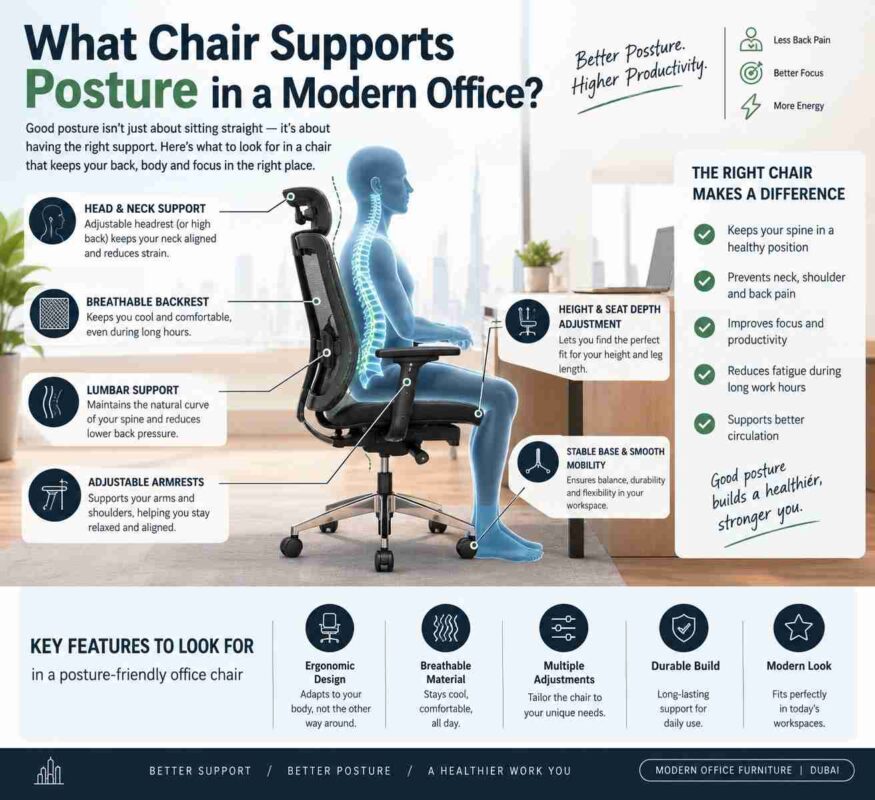
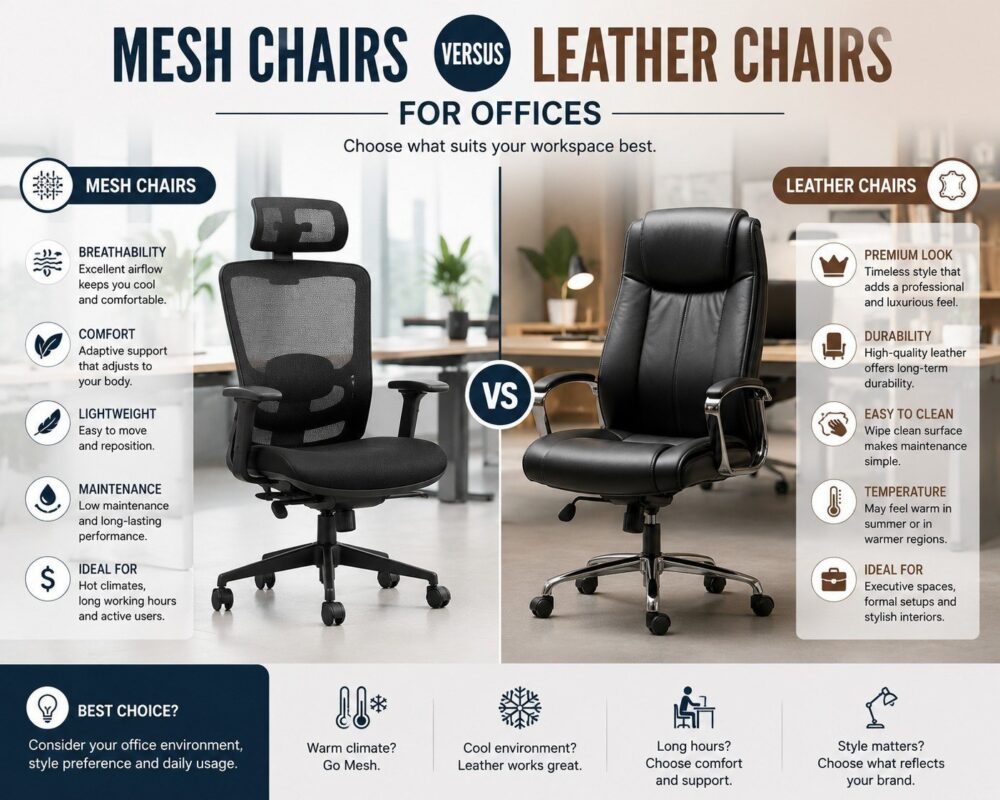
A chair can have a breathable mesh backrest, high-density foam seat and premium executive finish. Yet still cause daily discomfort if its armrests are set incorrectly. Knowing how to set chair armrests gives employees a more stable working position without forcing the shoulders upward or pushing the chair too far from the desk. For offices investing in employee wellbeing and focused performance, this small adjustment has an outsized effect.
Armrests are not simply a place to rest between tasks. Set well, they help support the forearms during reading, calls, and fine mouse work. Set poorly, they can create neck tension, restrict access to the desk, interfere with keyboard posture, or encourage employees to lean forward. The right setting depends on the user, the desk height, the task, and the chair’s adjustment range.
Start With the Desk, Then Set the Chair Armrests
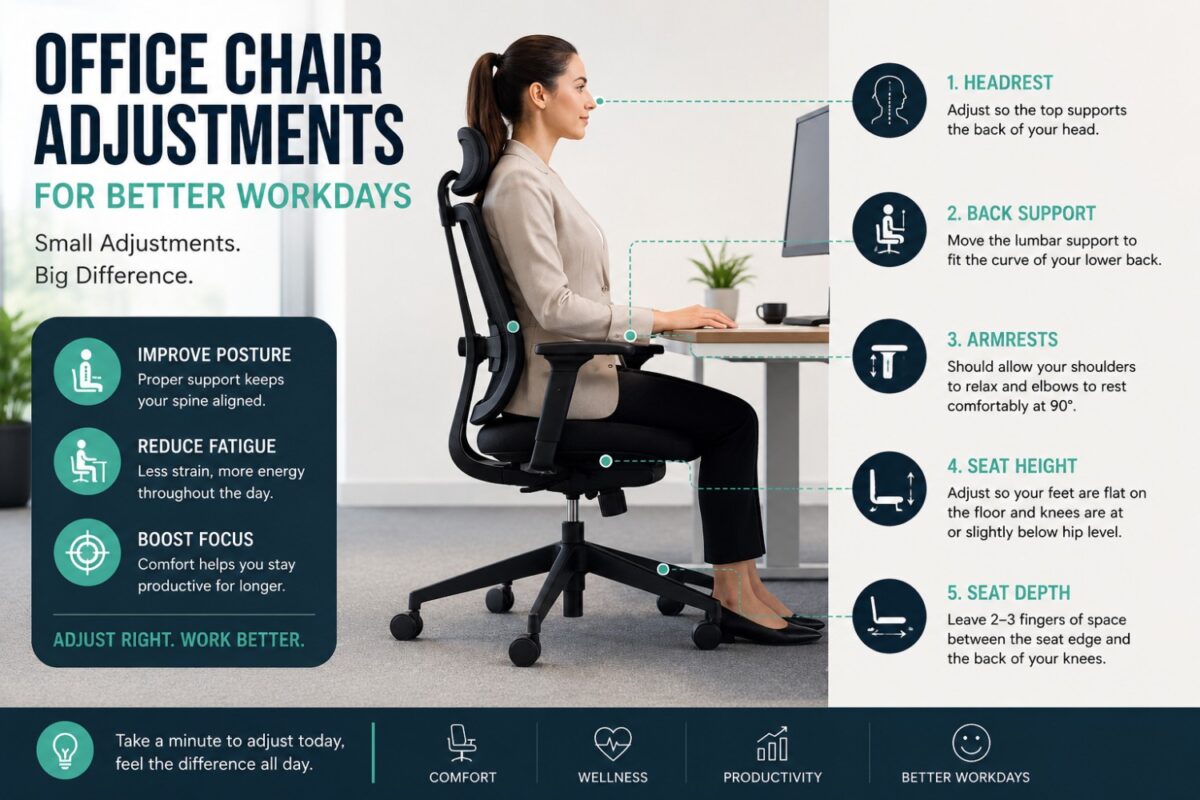
Armrest setup works only when the workstation is adjusted as a system. Begin with the desk and chair height rather than changing the armrests in isolation. The user should sit fully back in the chair, with feet supported on the floor. A footrest and thighs resting comfortably on the seat. Their knees should generally sit close to a 90-degree angle. It is without the seat edge pressing into the backs of the legs.
Next, set chair height so the keyboard can be used with the elbows near the body and bent at roughly 90 to 100 degrees. There is flexibility here. A user who alternates between typing, handwriting, and reviewing documents will not hold one exact angle all day. The goal is a relaxed, neutral position rather than rigid posture.
Only then should the armrests be adjusted to meet the forearms. If armrests are raised before chair and desk height are established, they may appear supportive but leave the employee with elevated shoulders or an awkward reach to the keyboard.
The first test: relaxed shoulders
Ask the user to let their arms fall naturally at their sides, then bend the elbows as though they are about to type. Raise or lower the armrests until the forearms can rest lightly on them without the shoulders lifting toward the ears. Shoulders should feel level and relaxed, not braced.
Armrests that are too high are among the most common office seating problems. They force the shoulders upward, often creating tension through the neck and upper back. Armrests that are too low do not offer enough support during pauses and can encourage the user to slump or lean onto one side.
A good setting provides contact without carrying the full weight of the arms. Think of the armrests as a light support surface, not a fixed platform that locks the body into one position.
Set the Height, Width, Depth, and Pivot
Commercial ergonomic chairs may offer more than a simple height lever. Adjustable armrests can move in several directions, allowing seating to suit different body sizes, work styles, and workstation layouts. These features are worth using, especially in shared offices where one chair may serve multiple employees over time.
Height: support without shoulder strain
Height is the priority adjustment. With the elbows tucked comfortably close to the torso, the arm pads should sit just beneath the forearms. During keyboard work, some users prefer armrests a fraction below desk height so they can move close to the keyboard tray or work surface without the pads colliding with it.
For reading reports, video calls, or tablet use, slightly higher armrests can reduce fatigue. The trade-off is access to the desk. If the armrests prevent the chair from moving under the desk, lower them or choose a desk with sufficient clearance rather than forcing the employee to sit too far away.
Width: keep the elbows near the body
Set the armrests so they support the forearms without pushing the elbows outward. Excessively wide armrests can open the arms too far from the torso, placing strain through the shoulders. Armrests that are too narrow may pinch the hips or prevent the user from sitting centered in the chair.
For most users, the arm pads should align under the forearms when the elbows rest naturally beside the body. Wider-set armrests can be useful for larger users or executive chairs with broader seats, but the shoulders should remain relaxed rather than stretched outward.
Depth: make room for close desk work
Depth-adjustable armrests move forward and backward. This is particularly valuable for mouse-intensive work. Set too far forward, the pads may hit the edge of the desk and stop the chair from moving close enough to the keyboard. Set too far back, they may provide little support when the user pauses between tasks.
A practical position places the front of the arm pad slightly behind the desk edge when the chair is pulled in. This gives the user room to approach the work surface while preserving a resting point for the forearms. Employees who spend much of the day writing by hand may prefer the armrests farther back or lowered to avoid obstruction.
Pivot: follow the natural line of the forearms
Pivoting arm pads turn inward or outward. For typing, a slight inward angle can follow the line from elbow to keyboard and reduce wrist deviation. For a wide keyboard, dual-monitor setup, or broad executive desk, a more neutral or slightly outward setting may be more appropriate.
Avoid extreme angles. If the arm pads point sharply inward, they can crowd the thighs and restrict natural movement. If they point too far out, they stop supporting the forearms where support is needed most.
A Quick Armrest Adjustment Sequence
For facilities teams setting up new chairs or office managers helping staff settle into a new workstation, use this five-part sequence:
- Set the chair height with the feet supported and the keyboard at a comfortable elbow level.
- Raise or lower the armrests until the shoulders remain fully relaxed.
- Adjust the width so elbows sit close to the body without pressure at the hips.
- Move the pads backward if they contact the desk or prevent close keyboard access.
- Pivot the pads subtly to match the user’s keyboard and mouse position.
After these adjustments, have the employee work normally for 10 to 15 minutes. Static testing can look correct while real tasks reveal interference. A chair that feels comfortable during a short demonstration may need a final adjustment once the user begins switching between typing, calls, documents, and screen work.
When Armrests Not to Use Continuously
Well-adjusted armrests support comfort, but they should not create dependence on one fixed posture. During active keyboarding, some users work best with their forearms lightly touching the pads, while others prefer a small gap to allow freer movement. Both can be appropriate if the shoulders stay relaxed and wrists remain neutral.
Armrests should also be lowered or moved out of the way when they block access to the desk. This is common with compact workstations, fixed-height desks, and chairs with large padded arms. Employees should never perch at the front of the seat because the armrests are preventing them from pulling in close enough.
For conference rooms and training areas, the priorities differ slightly. Armrests can add comfort during long meetings, but overly wide or bulky designs may make chairs difficult to arrange around a table. In collaborative spaces, select seating that balances support with easy movement and a clean visual footprint.
Match Armrest Features to the Workstation
Not every office requires the same chair specification. An ergonomic task chair used for six to eight hours of computer work benefits from height-adjustable arms at a minimum. Four-dimensional armrests, which commonly adjust in height, width, depth, and pivot, offer more precise support for employees using multiple screens or varied input devices.
Executive offices may favor upholstered or leather-finished armrests that reinforce authority and comfort. However, appearance should not outweigh adjustability. An executive chair with fixed arms can work well for occasional desk use or meeting-focused roles, but it may not suit a leader who spends long periods reviewing documents and working across screens.
For hot-desking and shared workstation clusters, intuitive controls matter. Employees should be able to reset armrest height quickly without tools or specialist instruction. Durable mechanisms and resilient arm pads also protect the chair’s professional appearance under frequent use.
Build Better Seating Habits Across the Office
The best armrest setting is not permanent. It should change when the user changes, when a desk is reconfigured, or when the work shifts from focused screen time to meeting and collaboration. A short onboarding check when new seating is installed can prevent weeks of avoidable discomfort and helps employees recognize that ergonomic furniture is meant to be adjusted.
A well-furnished workplace should project a strong impression while helping people perform at their best. When chairs, desks, monitor positions, and storage layouts work together, comfort becomes part of the office’s operational standard – not an afterthought.